
Organization Name
Adding your Organization's name identifies Password Reset emails as coming from your Organization.
In SAM, click Settings > System Configuration > click Organization name > enter/update as desired > Save |
System Settings
Upload a Logo
In SAM, click Settings > System Configuration > click Upload Logo (sidebar) > select file > Save |
For best results, logos should be 176px x 42px
Session Timeout
Users are logged out after a period of inactivity as a security precaution. Default is 30 minutes. Users are logged out if they login from another device/browser.
Session timeout and browser timeouts are different. Users may experience this if they keep an edit form open for a long time. We suggest saving edit forms often, as browser settings and internet connection issues can result in unrepairable data loss.
Change Session Timeout
SAM Leads can adjust the time for logout depending on your security policies.
|
In SAM, click Settings (gear icon) > Security Center > Forms Security Settings (sidebar) > click Edit Forms Security Settings (sidebar) to update as desired > Save Change the Session Timeout in Minutes to a lower value for greater security or a higher value for less security but more convenience for the users. |
Troubleshooting Logout Issues
If users are being logged out prematurely, it could be because they have another device auto-logging in, which is a feature of some password-managers. For example, if a user signs in on their phone, it would sign out the user on their computer, but if the computer has a password-manager that is setup to auto-login, it will logout the user on their phone.
MFA Settings
In this section, there are two settings to allow user's to register devices with MFA. We have provided more information about this in our guide on MFA.
- Allow Users to Register Devices for MFA
- Number of Days to Register Device
Decryption Password
This password is requested to view SSN and other encrypted fields.
The initial decryption password is available upon request by a SAM Lead via the Support link in your site. Upon receiving the temporary password, reset the decryption password.
Reset the Decryption Password
In SAM, click Settings (gear icon) > Security Center > Reset Decryption Password (sidebar) > enter temporary password > enter password > confirm new password > Save |
Keep this password in a safe and make it available on a need to know basis for users.
Should you forget the new decryption password, reach out to our team via the Support link in your site. We will be able to reset your password only at the request of SAM Leads.
Print Decrypted Fields
When encrypted fields are added to Templates, the encrypted field will not be shown by default. It's encrypted. This feature is for fields like social security numbers.
When you print a Template, SAM will prompt you to enter the decryption password at the top of the Print/Email Template once per session.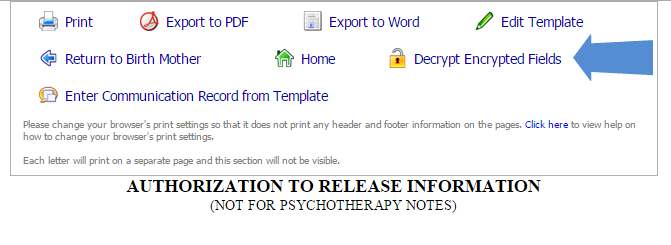
Password Blacklist
This is a SAM Lead defined list of words that cannot be used in passwords.
|
In SAM, click Settings (gear icon) > Security Center > Edit Password Blacklist (sidebar) > click Add List Item (sidebar) > enter word that cannot be used in passwords > Save Repeat as needed. |
Time Zone
A default time zone can be set for your SAM site. Default is set to Eastern Standard Time.
Each user can set their time zone to add and view time fields in their current time.
Change the Default Time Zone
In SAM, Settings (gear icon) > System Configuration > Edit Settings (sidebar) > set Default Time Zone for Organization (dropdown) > Save |
Comments
0 comments
Article is closed for comments.