
SAM's Email Importing works by searching linked email accounts for emails matching an email address on a record in SAM. SAM will only import emails stored in your Inbox, within a folder/label in your Inbox, or Sent folders. Some folders are excluded from importing, see details below.
Imported emails are stored in Communications under the corresponding Entity (such as family, child, etc.).
Prerequisite Setup on your Email Server
- Before you begin email importing setup ensure you have IMAP enabled for your email accounts.
- Some of your email server settings or email encryption services may interfere with authentication and importing.
Setup Steps
- Enable Email Importing
- Connect a User's email account and Enable Email Importing
1. Enable Email Importing
|
In SAM, click Settings > Email Settings Hub > Email Importing Settings > click Edit Email Importing Settings (sidebar) > check box Automatic Email Importing Enabled |
2. Connect a User's email account and Enable Email Importing
3. Email Importing runs nightly
The Email Importing function runs automatically in the middle of the night to not disrupt business processes.
Imported and matched emails will be added to SAM as Communication records in the record for which it matches. Emails imported to SAM from Email Importing can be found under an Entity's Communications and labeled as Imported Email = Yes.
- Email importing does NOT import attachments. Refer to original email for document attachments.
- If emails are exchanged between multiple records, the email is stored for all records of the communication that match.
Once an email has been imported, it can only be removed by deleting the Communication record.
How Email Importing Matches
A match must be made between the email and the record in SAM on the following criteria:
Email Address
An email address entered on a Main Entity that corresponds to an email address sent TO, FROM, or CC of an email. The email address must be recorded through an email address field type in SAM. The BCC field is only searchable for emails you sent and only for certain email providers.
Entity ID
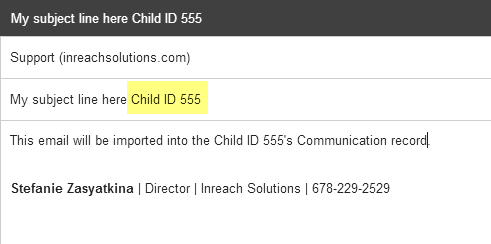
Append the record's 'Entity Type ID' to the end of the subject for an email. An Entity's ID can be found on their Cover Page.
For example, "This is an example of a subject line for an email about Child ID 555". The imported email will be stored under the Child ID 555's communication record.
- SAM can only accept ONE Entity ID at the end of the subject line.
- The original Entity/Table name must be used, such as 'Family' or 'Birth Mother.' Customizing the field title of the Entity ID field will nullify this option.
- If you want an email imported, but forgot the Entity ID in the subject line, add the entity's ID in the subject line in a reply or forward the email to yourself.
- Email importing can take several hours for emails to be imported by ID in the subject line, due to speed limitations of text searching through many emails.
Manually Initiate Email Importing
SAM Leads may manually initiate Email Importing to have your emails imported immediately versus waiting until the next scheduled run time.
|
In SAM, click Settings (gear icon) > Email Settings Hub > Email Importing Settings > click Advanced Options > Manually Initiate Email Importing for All Users (sidebar) |
This option will not duplicate emails that have already been imported by email importing.
Advanced Email Search Settings
It is possible to exclude email addresses, domains and folders from automatic email importing.
By default, SAM will exclude emails, where the domain name of the email address (@youragency.com) is the same as the agency's website.
If your organization uses multiple domain names for its email addresses, please make sure that all of them are listed in 'Domain Names to Exclude' field otherwise the email will be imported under the Person's record.
Exclude an Email Address or Domain Name
This is helpful for situations where an employee uses an external email address to communicate with other employees or when an adoptive parent is also an employee and their work email address is entered on their record.
|
In SAM, click Settings (gear icon) > Email Settings Hub > Email Importing Settings (sidebar) > Edit Email Importing Settings (sidebar) > Enter email addresses separated by a comma in Email Addresses to Exclude or the Domain Name in the Domain Names to Exclude > Save |
Exclude Email Folders
By default, SAM excludes folders, like Spam, Archived, Trash, Drafts, Junk, Calendar, Chats, Virus Quarantine, and Deleted Items. Excluded folders are a global setting across all users with Email Importing enabled, and are not set per user.
To exclude additional folders, contact SAM's Support Team for professional service support.
Access for SAM's Support Team:
|
In SAM, click Settings (gear icon) > Email Settings Hub > Email Importing Settings (sidebar) > Developer Options > Edit Folders to Exclude from Importing (sidebar) > click Add List Item to add a new folder > Save |
The email server folder names may not be what your folder is titled. For example, a folder called 'Sent Items', may be called 'Sent_Items' on the email server. Check your email server settings for folder names.
Entity Specific Email Importing Options
Customize how email importing searches Entity records by Email Address or ID in Subject line.
|
In SAM, click Settings (gear icon) > Email Settings > Email Importing Settings (sidebar) > Edit Email Importing Settings (sidebar) > Entity Specific Email Importing Options |
Disable Email Importing for Users
For users with Email Importing enabled, you will need to disable that service separately from the user's access to SAM.
|
In SAM, Access the User's Person record > click Advanced Options (sidebar) > scroll down to Edit Email Settings > uncheck Email Importing Enabled to disable the user's service > Save |
Comments
0 comments
Article is closed for comments.